A document can look clean when you open it and still carry the author's name, the disk path it was exported from, forgotten comments, or a script that runs as soon as it opens. Security Sentinel looks for these traces and removes only what you select, in a new copy. The text, images and page layout stay unchanged.
This article explains how the app reads and cleans PDF and DOCX files, and where its limits are. Security Sentinel is available on Google Play.
Why not just "save again" or "print to PDF"?
The simplest approach is to redraw the document from scratch, for example by printing it to PDF again. That approach has three problems:
- The content changes. Text can turn into an image, fonts can be substituted, and links and form fields are lost.
- You don't know what was removed. Everything disappears at once, with no list of what was there.
- You can't choose. Sometimes you want to keep the date or the title and remove only the author.
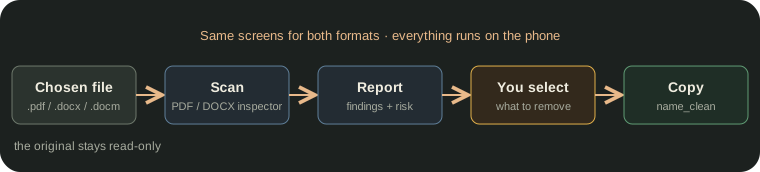
Security Sentinel treats the file as a container. First it takes an inventory of the metadata (the scan). Then it removes from the container only the items you selected (the cleanup). The page content is never redrawn.
One flow for two formats
PDF and DOCX use the same screens: upload, report, selection, result. Only the engine underneath differs. The format is chosen from the file extension, so the decision is made before a single byte is read:
fun documentFormatOf(displayName: String) =
    if (extension == "docx" || extension == "docm") DOCX else PDF
An old .doc file (a binary format, not a ZIP archive) goes down the PDF path. It can't be read there, and the report shows a clear read error instead of the file silently disappearing.
PDF: where the metadata hides
A PDF can store author information in two different places, and the app reads both with the PDFBox-Android library:
- Document Info Dictionary: the classic, short list (Author, Creator, Producer, creation and modification dates).
- The XMP stream: a newer, richer XML block. Some modern apps write the information only here, together with fields the classic list doesn't have: edit history, the file the document was derived from, copyright and unique identifiers.
Beyond these two lists, the scan also checks parts of the document that aren't strictly metadata but can still leak information:
| What is checked | Why it matters | Risk |
|---|---|---|
Author (Info + XMP dc:creator) | The person's name, directly | high |
| XMP history, "derived from", ingredients | Can reveal the source file and the software used earlier | high |
Comments (/Text, /FreeText) | Include the name of whoever commented | high |
| Digital signature | The signer's declared name | high |
| Embedded attachments | An attachment can contain more than the document itself | high |
Hidden layers (/OCProperties) | Text or images a reader doesn't show by default | high |
| Document and instance ID, rights, description, tags | Allow tracking or correlating versions | medium |
Page thumbnail (/Thumb) | Can show an older version of the page | medium |
| Application, PDF producer, dates | Technical traces of the working environment | low |
When the XMP is broken: strict reading, then lenient
The standard XMP parser rejects the whole block if a single field doesn't have exactly the expected format. Most often it's a date written without a time zone, which is very common in real-world PDFs. Without a fallback, correct fields such as the author would also disappear from the report.
The app tries strict reading first. If that fails, it reads the text of the known XML elements directly, without checking types:
val strict = runCatching { DomXmpParser().parse(bytes) }.getOrNull()
val values = if (strict != null) readStrict(strict)
             else readLenient(bytes)   // raw text from the DOM
Cleanup follows the same rule. If even lenient reading fails (completely damaged XML), the app removes the entire XMP block. Removing more than you asked for is safer than leaving a field you selected.
Derived signals: file paths and authors that don't match
Every value found, in any field, is checked with a few regular expressions that recognize a local or network file path:
C:\Users\ana\Documents\offer.docx      // Windows
\\office-server\share\contracts\       // network (UNC)
/home/ana/...   /Users/ana/...         // Linux / macOS
file:///...                            // local URL
Such a path can reveal the user name, the computer name or the folder structure, so it gets a separate high-risk finding. The original finding also stays in the list, as plain information.
If the author in the classic list differs from dc:creator in XMP, the app reports the discrepancy. It can mean the file was edited or converted by someone other than the declared author. The app presents this as a fact, without drawing conclusions.
Active content: what runs without a click
A PDF can declare actions that start on their own when it is opened, closed, saved or printed, or when the page changes. The app checks every place where such actions can appear (/OpenAction, /AA on the document and on pages, /Names/JavaScript) and sorts them into three categories:
| Category | What it can do | Risk |
|---|---|---|
| Automatic JavaScript | Runs code. It can be legitimate (a form calculating its own fields) or not. | high |
| External program launch | Starts a file or program on the computer of whoever opens the document | high |
| Automatic external reference | Contacts a URL or server and can confirm who opened the file and when | medium |
The report also shows the concrete value found: the script, the target program or the URL. Ordinary links that you click yourself are deliberately ignored, because they aren't a risk and would only produce false alarms.
DOCX: really a ZIP archive of XML files
A .docx file is a ZIP archive. The app opens it with tools already built into Android (java.util.zip and the XmlPullParser XML parser), with no extra libraries. Each file inside the archive has a role:
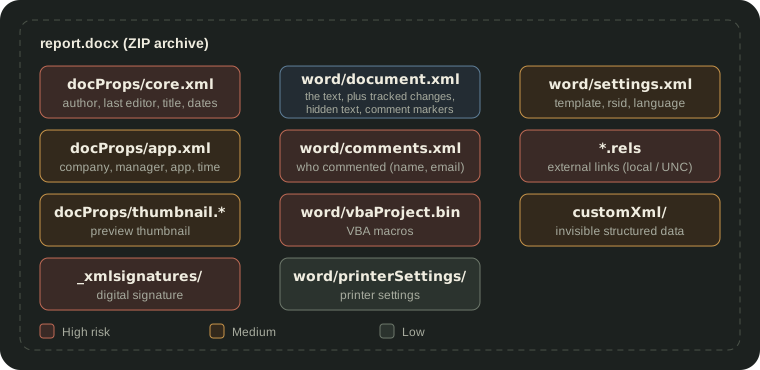
The archive is read fully into memory as an ordered name → bytes list. Real DOCX files are usually between a few KB and a few MB, so this is practical. It also lets the cleanup change just a few entries and copy the rest unchanged.
Cleanup: a new copy with only what you selected
Both formats follow the same rules:
- The original file is opened read-only. The result is a new file with the
_cleansuffix, for examplecontract_clean.pdf. - Every kind of finding has a matching removal rule. A derived finding removes the field it came from: "file path in Author" removes the Author, and "author discrepancy" removes both author fields.
The classic fields are cleared through PDFBox (info.setAuthor(null)). Only the selected properties are removed from XMP, then the block is saved again. Thumbnails, comments, signatures (together with the certificate) and attachments are removed as whole objects. Automatic actions are removed only from the selected category: if you select just "JavaScript", a program-launch action stays untouched.
DOCX
Each XML file is rewritten as a stream, element by element, using two kinds of filter:
filterXml(bytes,
    shouldRemove = { /* drop the element AND everything inside it */ },
    shouldUnwrap = { /* drop only the tag, keep the content */ })
The difference matters for tracked changes. In practice the app does "Accept all changes":
<w:del>old text</w:del>                 → removed (it wasn't visible when reading anyway)
<w:ins w:author="Ana">new text</w:ins>  → new text (kept; only "Ana" disappears)
Hidden text is harder. When the parser reaches the start of a <w:r> run, it doesn't yet know whether the run is hidden. The filter holds the whole run temporarily and decides only at its end: if it contains <w:vanish/>, it's dropped, otherwise it's written unchanged.
When a whole part is removed (the signature, the thumbnail, the macros), the app also removes the references to it from [Content_Types].xml and from the .rels files. Otherwise Word would find pointers to files that no longer exist. If you remove the macros from a .docm, the copy gets the .docx extension. If you keep them, the extension stays .docm, so a file that still has active code doesn't look harmless.
The core principle: cleanup doesn't change what you see on the page. Comments, tracked changes and hidden text are technically part of the content, but removing them affects only elements that didn't show up in normal reading anyway.
Known limitations
- Hidden PDF layers are only detected, not removed. Removing them would require rewriting the page content instruction by instruction, at the risk of changing what is visible.
- Digital signatures are reported from the information declared in them, without cryptographic verification.
- In PDFs, only attachments at the first level of the attachment list are read. That's enough for almost all real documents.
- Automatic actions on individual PDF form fields are not checked.
- Hidden text in DOCX is detected only through Word's "Hidden" formatting, not through tricks like white text on a white background.
- The app tells you that a macro or script exists and shows it, but doesn't analyze what it does.
- Cleanup doesn't change visible text. A name written in the body of the document stays there.
All processing runs locally, on the device.
Get Security Sentinel on Google Play, see what else it checks on the product page, or read how it handles personal data in plain text and photo metadata.